Right-click menus and properties
Commands for one node, one edge or the whole graph, and the windows that show their properties.
Node menu
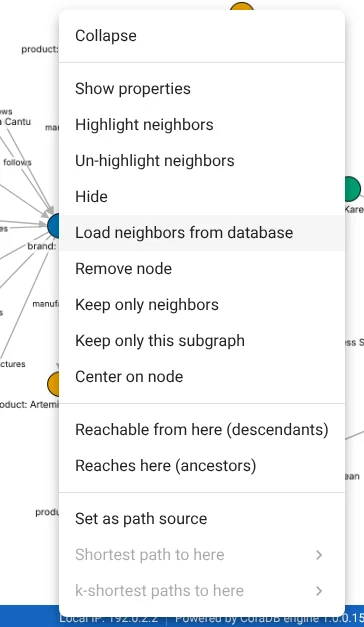
| Item | What it does |
|---|---|
| Collapse / Expand | Fold the node's neighbours into it, or unfold them. |
| Show properties | Open the node's properties window. |
| Highlight neighbors / Un-highlight neighbors | Emphasise the node's direct neighbours, or stop. |
| Hide | Hide the node (Show all on the background menu brings it back). |
| Load neighbors from database | Query the database for the node's neighbours and add them to the graph. |
| Remove node | Take the node out of the graph. |
| Keep only neighbors | Keep the node and its direct neighbours; remove the rest. |
| Keep only this subgraph | Keep only the part of the graph connected to this node. |
| Center on node | Move the view to the node. |
| Reachable from here (descendants) | Highlight every node reachable by following edges out of this node. |
| Reaches here (ancestors) | Highlight every node that can reach this node. |
| Set as path source | Mark the node as the start of a path (then use the next two items on another node). |
| Shortest path to here | Highlight the shortest path from the path source, choosing the algorithm in the submenu. |
| k-shortest paths to here | Highlight several shortest paths from the path source. |
| Cleanup path source | Shown on the path source: clear it. |
Edge menu
| Item | What it does |
|---|---|
| Show properties | Open the edge's properties window. |
| Hide | Hide the edge. |
| Center on edge | Move the view to the edge. |
Background menu
| Item | What it does |
|---|---|
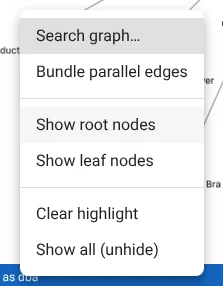
| Search graph… | Open Search. |
| Remove filter | Shown after a search filter: bring back every item. |
| Restore graph | Shown after reducing the graph to an analytics result: bring back the full graph. |
| Bundle parallel edges | Draw several edges between the same two nodes as one bundle. |
| Show root nodes / Show leaf nodes | Highlight the nodes with no incoming edges, or with no outgoing edges. |
| Clear highlight | Remove every highlight. |
| Show all (unhide) | Show every hidden node and edge again. |
Properties windows
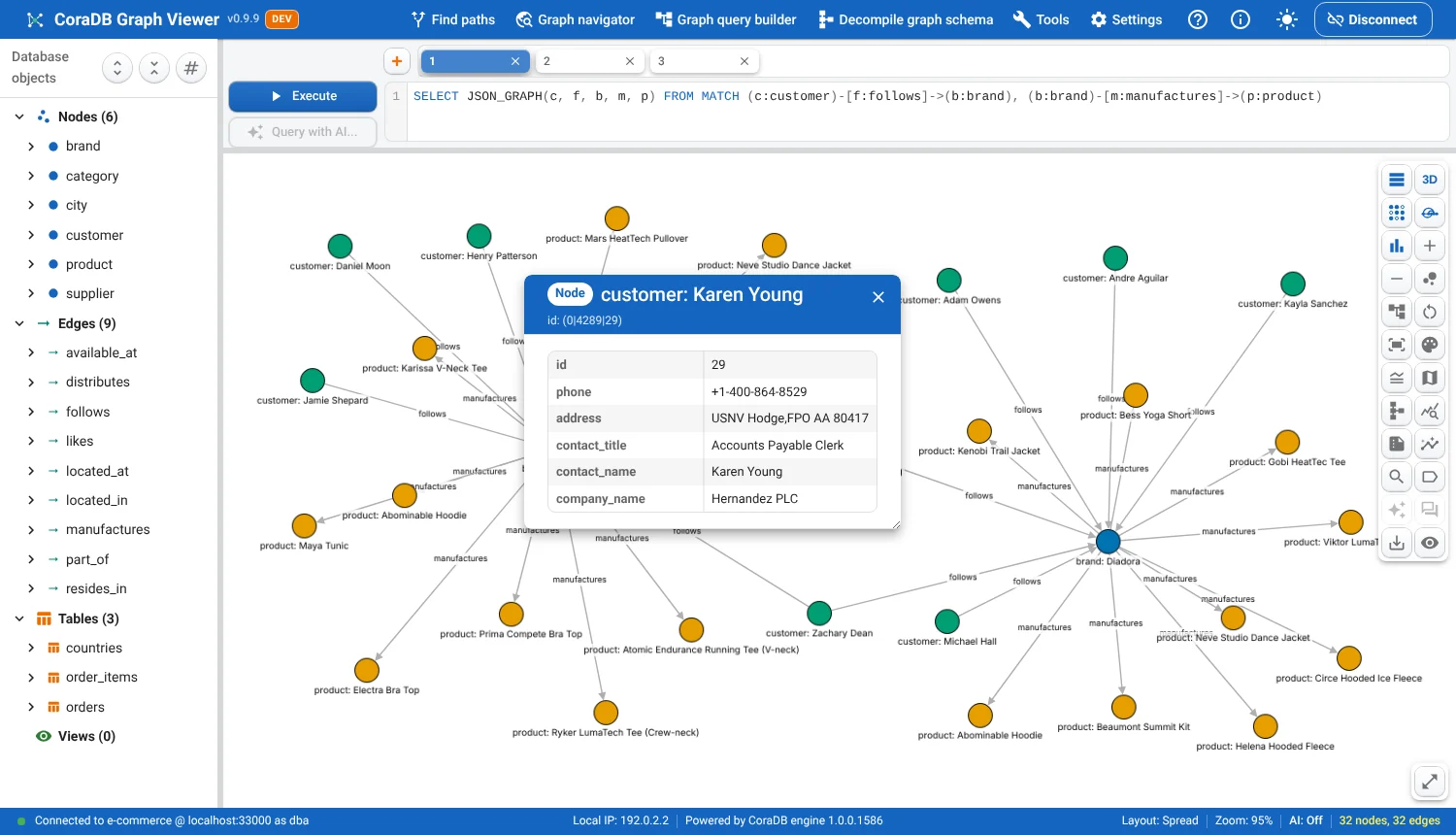
Clicking a node or an edge opens a window with its type, its id and all its properties. The window can be moved and resized. By default a new click replaces the window; turn on Enable multiple properties windows displayed in Settings ▸ Options to keep several open. Show node/edge properties on click (Graph display tab) turns the windows off.