Connect and disconnect
Open a database, or try the app without one in Demo/Learning mode.
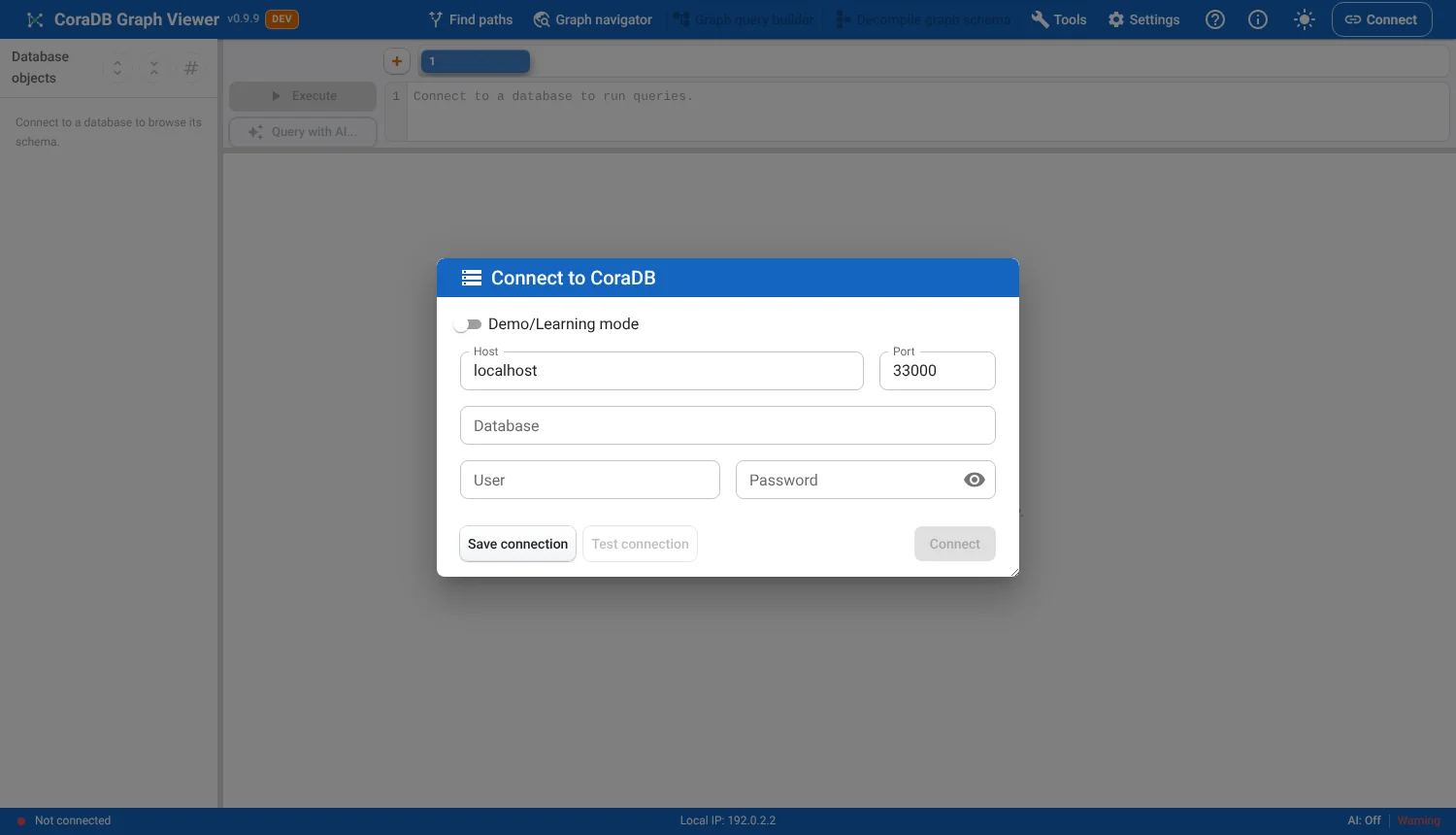
The dialog opens when the app starts without a connection, and from the Connect button at the right of the header.
| Option | What it does |
|---|---|
| Demo/Learning mode | Use the app without a database: the main screen opens with built-in sample schemas, and Tools ▸ Generate a demo graph draws sample graphs. Features that need a database are disabled and say so in their tooltip. |
| Host, Port | The CoraDB broker, for example localhost and 33000. |
| Database | Type a name or pick one of the listed demo databases. |
| User, Password | The database login. The eye button shows or hides the password. |
| Save connection | Remember the host, port, database and user (never the password) in the Saved connections list. Click a saved connection to fill the form; delete one with its delete button. |
| Test connection | Check that the database answers, without connecting. |
| Connect | Open the connection. Your query tabs, labels and decompiled schema for this database and user come back. |
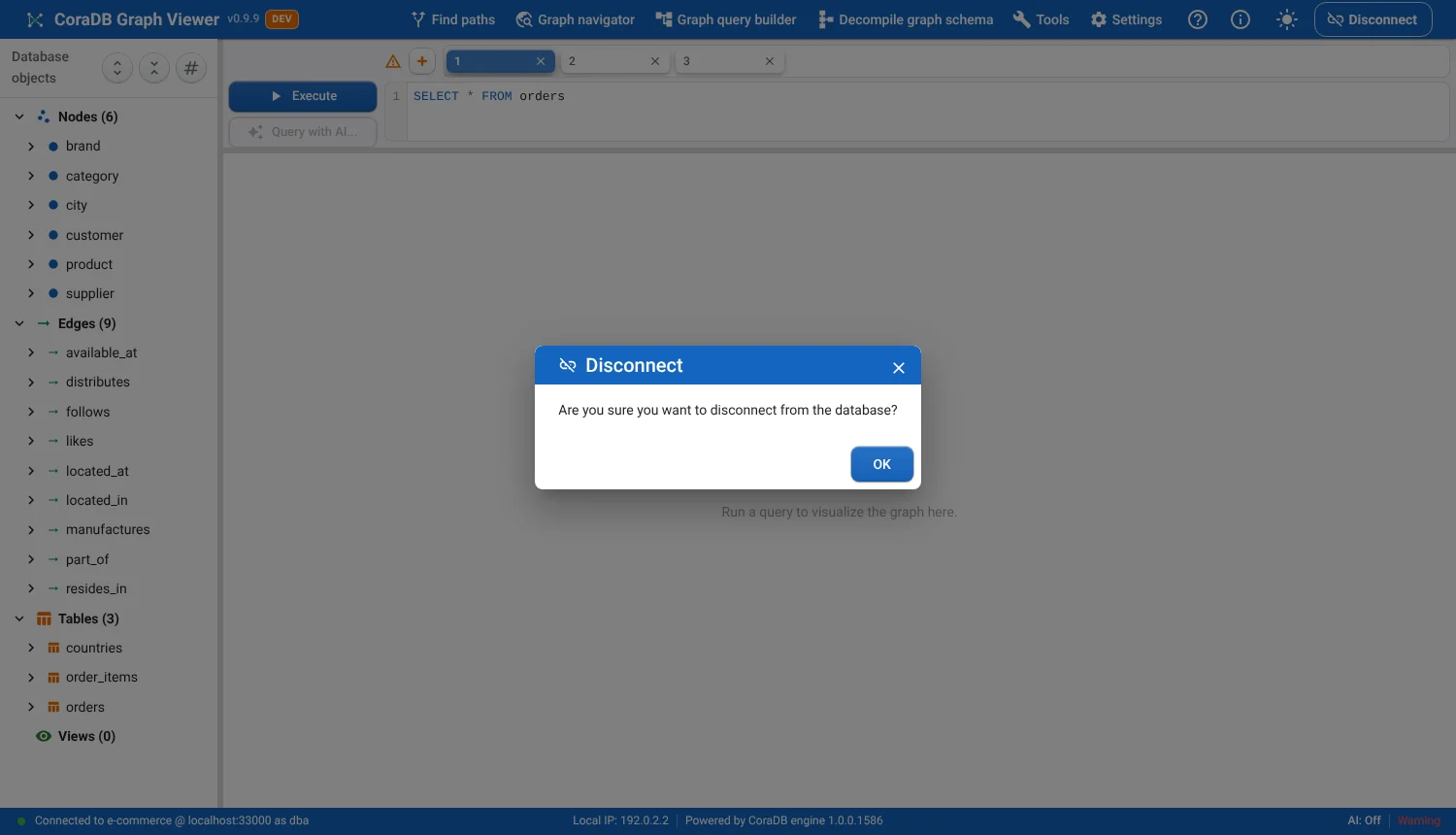
Disconnect
Click Disconnect in the header and confirm. The connection also closes by itself after a period without activity, set in Settings ▸ Options (Auto-disconnect after inactivity).